

Google Merchant Center Suspended? 3 Trust Signals Explained
March 15, 2026
Google Merchant Center Flagged for Misrepresentation? Here’s What Google Is Actually Checking in 2026
March 17, 2026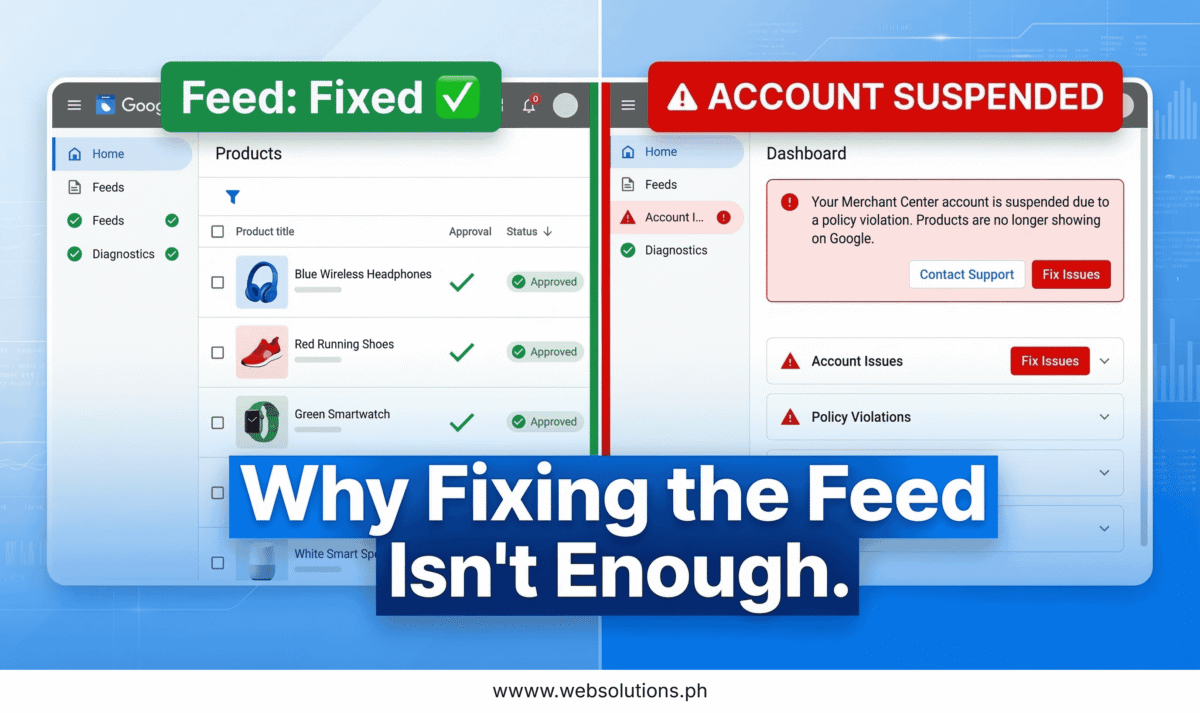
You went through the feed. Corrected the prices. Added the missing GTINs. Made sure the images were compliant. You clicked “Request Review” — and Google rejected it again.
If that sounds familiar, you’re not alone. And here’s what most merchants get wrong: you didn’t fail the review because your fix was incomplete. You failed because fixing the feed was never going to be enough in the first place.
The Misconception That’s Burning Merchant Appeal Attempts
The assumption almost every suspended merchant makes is the same: Google flagged my products, so this is a product data problem. Fix the data, appeal, done.
That’s not how it works.
Roughly 90% of Merchant Center suspensions fall under “Misrepresentation” — and that classification isn’t about your product data. It’s about whether Google trusts your business. When Google reviews a suspended account, it pulls signals from multiple sources: your website, your Merchant Center settings, your checkout flow, your business identity, and your digital footprint across Google properties. Your product feed is one input out of many — and often not the one that’s actually failing review.
Fixing the feed while the other factors remain unresolved is like replacing a tire on a car with a seized engine. The tire is fine. The car still doesn’t move.
What Google Is Actually Checking
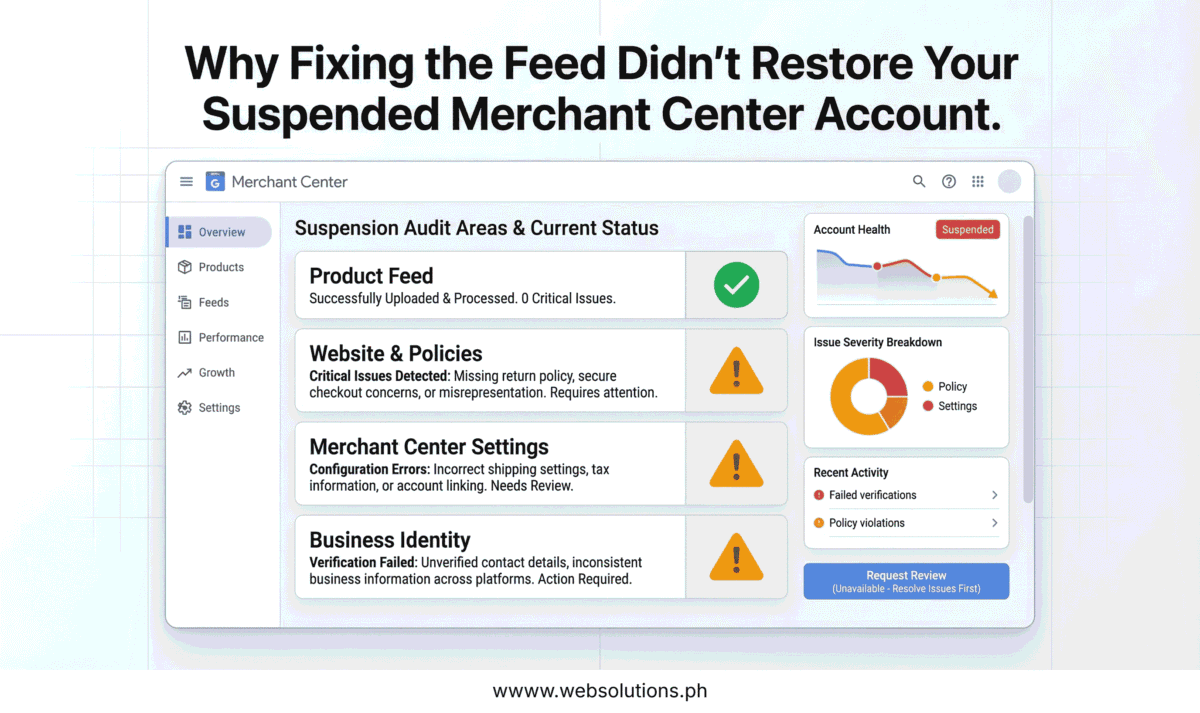
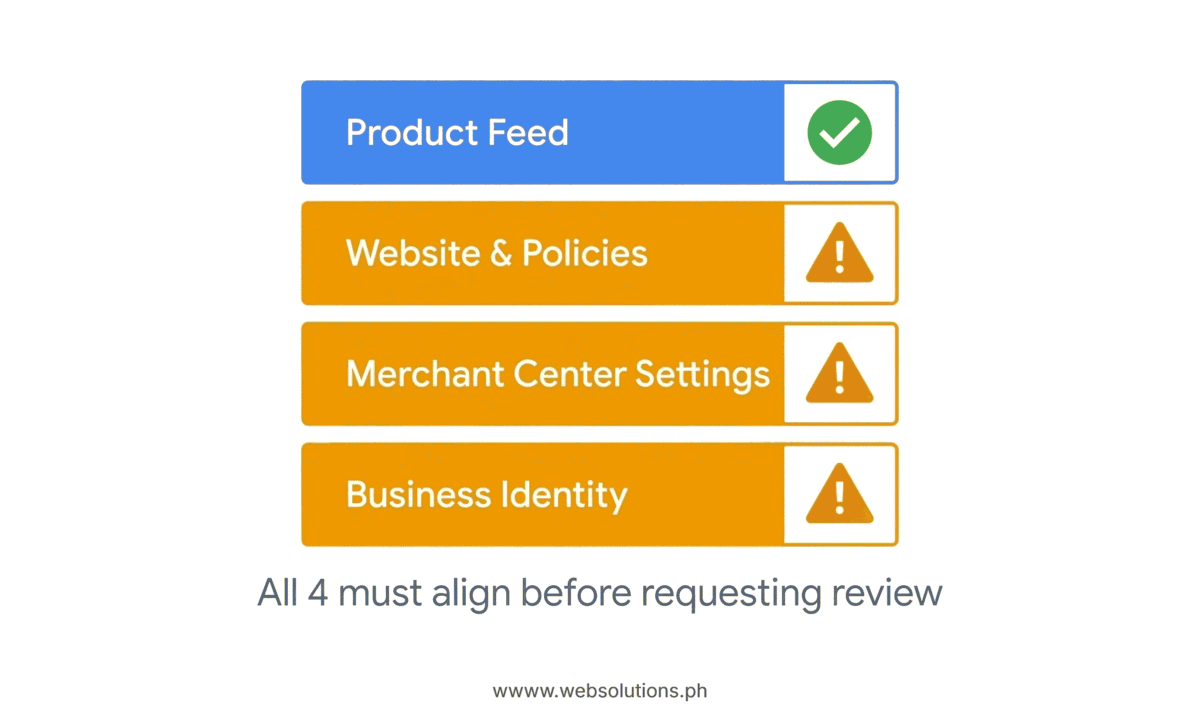
There are four areas Google evaluates during a suspension review. Most merchants only fix one.
Your product feed is the obvious starting point — prices matching landing pages, accurate availability, valid GTINs, compliant images. Yes, this needs to be clean. But it’s table stakes, not the solution.
Your website and policies is where most suspensions actually originate. Google checks for a complete, accessible return and refund policy — not a vague sentence in the FAQ, but a dedicated page with clear timelines, conditions, and processes. It verifies contact information — you need at minimum two contact methods visible and functional on your site. It crawls your checkout flow for hidden fees: if a processing surcharge appears at checkout that wasn’t disclosed on the product page, that’s a Misrepresentation flag. Popup overlays blocking the checkout, broken navigation, or fake urgency countdown timers also signal an untrustworthy storefront to Google’s review systems.
Your Merchant Center settings need to precisely match what’s on your website. Shipping timelines in your settings must match your shipping policy page exactly. Your business name, address, and phone number must be consistent across Merchant Center, Google Ads, Google Payments, and your site footer. Even small discrepancies — “Ave.” instead of “Avenue,” or a slightly different business name format — are enough to flag inconsistency during a review.
Your business identity includes advertiser identity verification (increasingly mandatory in 2026), your presence and consistency across Google properties, and whether your account has prior violations or connections to other flagged accounts. This is also the factor most merchants discover last — because Google doesn’t tell you it’s the issue.
The Appeal Trap
This is where the real damage happens — and it’s avoidable if you know it exists.
Google limits how many review requests you can submit before triggering escalating cooldown periods. The first failed appeal typically triggers a one-week lockout. The second extends that further. After enough failed reviews, the “Request Review” button grays out entirely — sometimes for weeks or months.
Merchants who fix only the feed and appeal immediately are burning through those limited attempts on a fix that was never complete. By the time they identify the actual issue — the missing policy page, the checkout fee, the unverified identity — they may have already lost their window to appeal cleanly.
The practical rule: do not request a review until every item across all four audit areas is resolved. Not most of them. All of them.
The 4-Part Audit to Run Before You Appeal
Work through these in order before touching the review button.
Start with your website. Add a dedicated return and refund policy page, a shipping policy page, and a privacy policy — each linked clearly in your footer. Add full contact information to your About page and site footer. Go through your checkout flow from a different device in incognito mode and confirm there are no surprise fees, broken steps, or unexpected redirects at any stage.
Then open Merchant Center and compare every setting directly against your website. Shipping costs and timelines, return windows, tax settings, business name and address — if anything doesn’t match exactly, fix it before moving on.
Check identity verification status. If you haven’t completed advertiser verification — government ID, business registration, or the video verification now commonly required in 2026 — complete that before attempting a review. Many accounts report the review button remains unavailable until this step is done.
After making changes, wait 48 to 72 hours before submitting an appeal. Google’s crawlers need time to re-index your site. Appealing immediately after making changes means the review team may be evaluating your old site, not the corrected version.
When you do submit the appeal, document every change with specific dates and URLs. Don’t just say “I fixed the issues.” Say what you fixed, where, and when — with screenshots or links. This gives the review team something to verify and signals that you’ve done a thorough audit rather than a quick patch.
The Bottom Line
A Merchant Center suspension is a trust audit, not a data audit. The product feed is one component — not the whole system. Merchants who treat it as a data problem keep failing reviews and burning appeal attempts. Merchants who treat it as a full business-trust issue — and run all four areas of the audit before appealing — are the ones who get reinstated.
If your account is suspended and you’ve already tried fixing the feed, the answer is almost certainly sitting in your website policies, your settings consistency, or your identity verification status. Find it before you appeal again.
Need help auditing your Google Merchant Center account or managing Google Shopping campaigns? I work directly with e-commerce businesses on Upwork — book a consultation here.
