

Fix Google Merchant Center Misrepresentation Error (2026)
March 12, 2026
Your Google Shopping ads might be wasting money — and you might not even know it yet.
In my 8+ years managing Google Ads accounts, I’ve audited dozens of Shopping campaigns. And the same three mistakes show up almost every single time. The frustrating part? None of them are complicated. They’re just easy to miss when you don’t know what to look for. Get even one wrong, and Google can disapprove your products, drain your budget on the wrong traffic, or destroy your ROAS before the campaign even has a chance to learn.
Here’s what to fix.
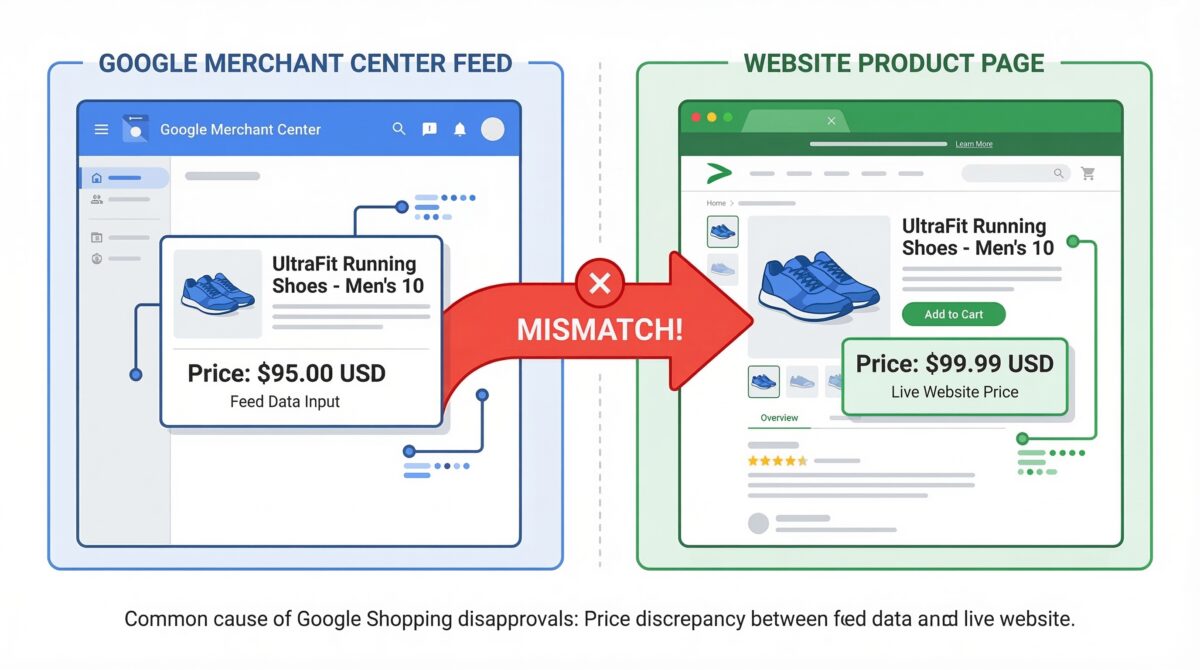
Mistake #1: Feed Mismatches Between Merchant Center and Your Website
This is the number one reason products get disapproved — and it happens constantly. If the price, availability, or shipping details in your Merchant Center feed don’t match exactly what’s on your website, Google flags it immediately. Your products either get limited visibility or disapproved outright.
The fix is straightforward: enable automatic item updates inside your Merchant Center settings and set up a daily feed export from your ecommerce platform. This keeps everything in sync automatically. After that, do a spot check — pull five to ten products from your feed and compare them against your actual product pages. Title, price, availability, images, GTINs. They need to match exactly.
Mistake #2: No Negative Keywords
Here’s the thing about Google Shopping that catches beginners off guard — you’re not targeting keywords the same way you do in Search. Shopping matches your products to queries based on your feed data. That means without a negative keyword list, you’re potentially showing up for searches like “free running shoes,” “how to repair sneakers,” or your competitors’ brand names.
Pull your Search Terms Report at least once a week. Look for irrelevant queries that generated clicks and add them as negatives at the campaign level. Over time, build an account-level negative list that protects all your campaigns from known budget-wasters. This one habit alone can dramatically improve your cost per conversion.

Mistake #3: No Conversion Tracking Before Launch
I can’t tell you how many accounts I’ve audited where Smart Bidding was flying completely blind — either because conversion tracking wasn’t installed at all or because it was set up incorrectly. Without proper conversion data flowing in, the algorithm has nothing to optimize toward. It’s guessing.
Before you launch anything, verify that your GA4 integration is connected and firing correctly inside Google Ads. Make sure you’re tracking purchases with value — not just clicks or page views. Once that’s confirmed, start your Shopping campaigns on Maximize Conversion Value rather than Target ROAS. Let the algorithm accumulate 30 to 50 conversions before you apply ROAS targets. That learning window is what makes Smart Bidding actually work.
The Bottom Line
Google Shopping can be one of the highest-return ad channels for ecommerce — but only when the foundation is solid. Most beginners lose budget in the first few weeks not because of bad products, but because of these three avoidable setup errors.
Fix your feed. Build your negative list. Get your tracking right. Then let the algorithm do its job.
