


3 Google Shopping Mistakes Beginners Make (And How to Fix Them)
March 11, 2026
Google Shopping Price Mismatch Suspension: 2026 Fix
March 13, 2026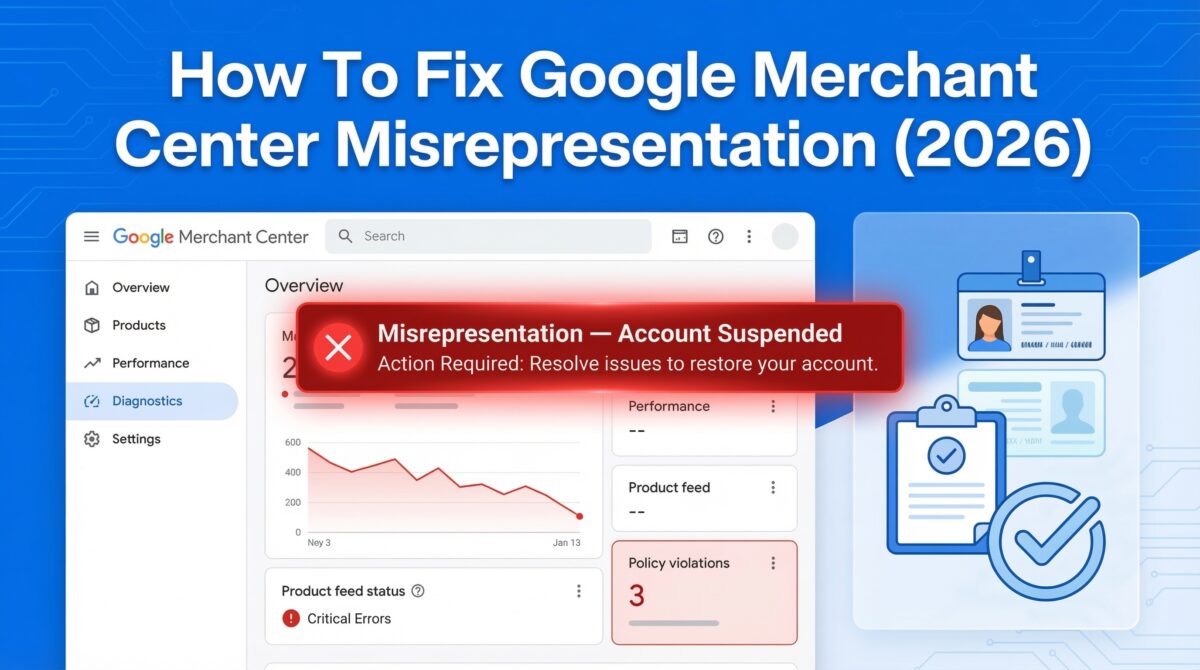
Getting hit with a misrepresentation flag in Google Merchant Center is one of those things that stops your whole operation cold. Shopping ads go dark, revenue drops, and the notification itself tells you almost nothing useful — just “misrepresentation” and a link to a policy page that takes twenty minutes to read.
And the instinct most merchants follow? Go straight to the product feed. Check prices. Fix titles. Update availability. Submit a review. Wait a week. Nothing changes.
That’s the trap. And in 2026, it’s costing merchants weeks of lost revenue.
What Actually Changed in 2026
Google didn’t just update its misrepresentation policy — it changed how the verification process works. The old path was to submit a review request through a support form and wait for a manual reviewer. That path now frequently leads to automated rejections with no useful feedback.
The 2026 path starts inside your Merchant Center account with a formal identity verification step that most merchants don’t even know is there. If you skip it — or don’t find it — you’re essentially submitting appeals into a void.
Here’s what misrepresentation actually means at its core: Google can’t confirm that your business is who it says it is, and that what you’re advertising matches what customers actually experience. That covers everything from a business name mismatch across your Google accounts to a website that’s missing policy pages to a checkout flow with surprise fees. It’s a broad flag — but the fix process is consistent.
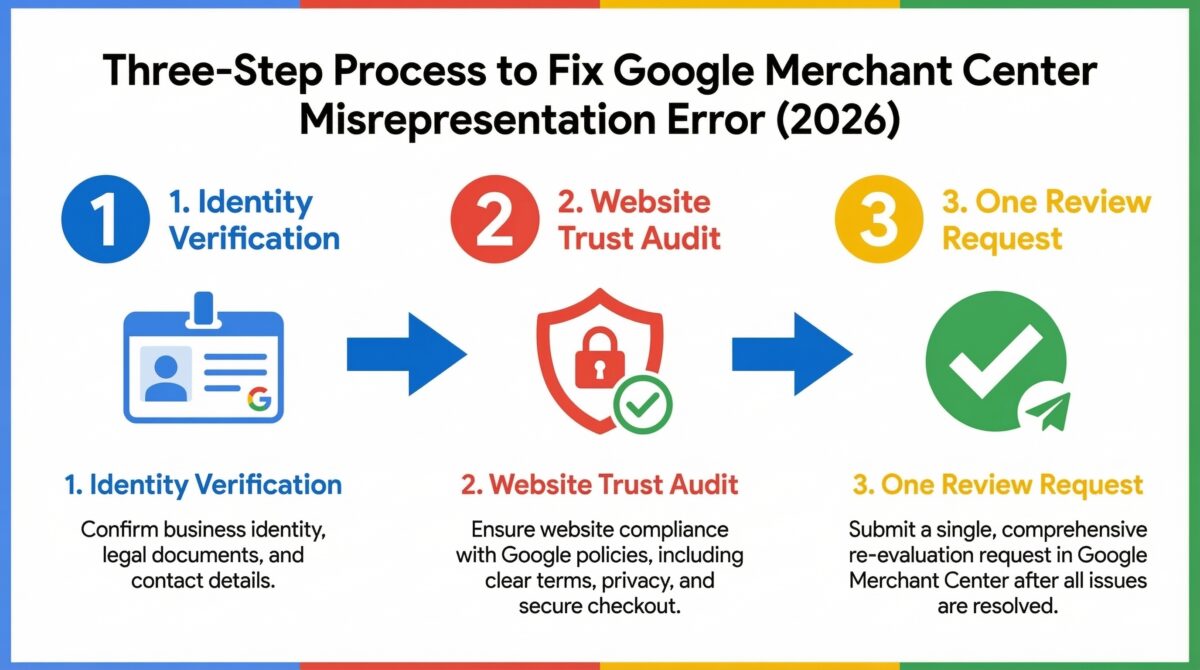
Step 1: Identity Verification Inside Merchant Center
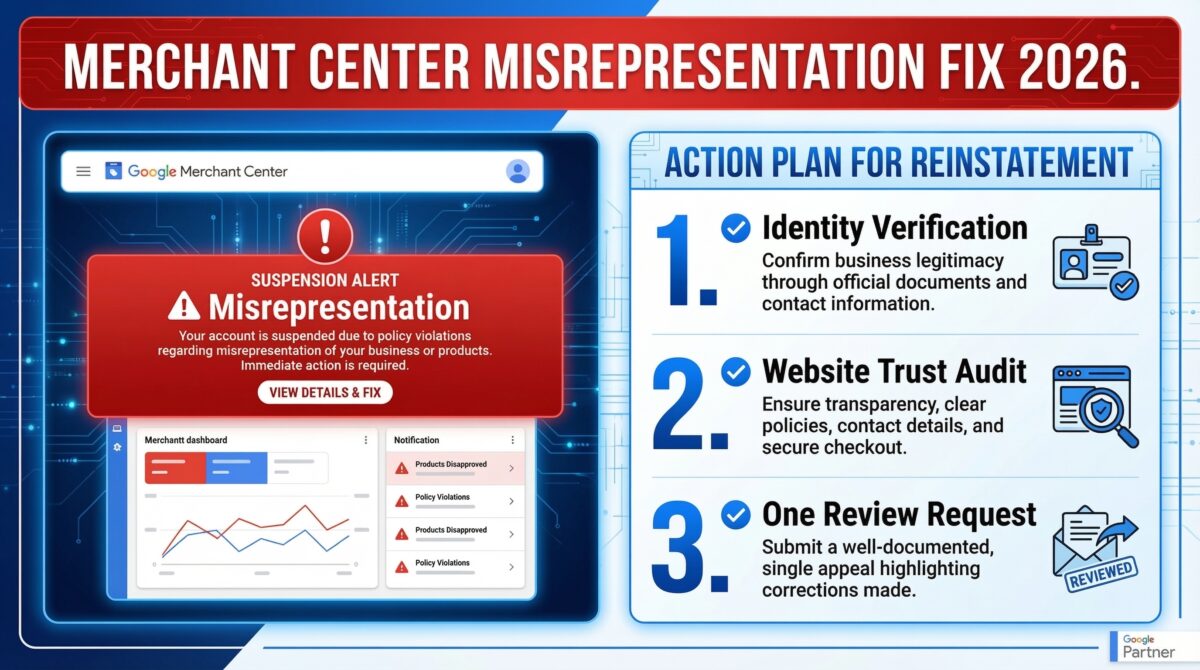
Open your Merchant Center account and go to Account Issues. Find the misrepresentation flag and open it. Inside the issue details, look for an identity verification link — this is your starting point.
You’ll be prompted to upload three things: a government-issued ID or passport, a recent utility bill showing your business address, and your company registration documents.
Before you upload anything — stop and check this first. Your business name and address must match exactly across Merchant Center, Google Ads, and your Google Payments profile. Not approximately. Not close. Exactly. “Company Inc.” in one account and “Company, Inc.” in another is enough to fail the check. Go through all three profiles and align them before you submit anything.
Some accounts — particularly those with physical inventory — may also be asked to complete a video verification. This is a 3–5 minute unedited walkthrough of your storefront, storage area, and products. It sounds like a lot, but it’s actually the fastest reinstatement path for legitimate businesses. If you’re prompted for it, don’t skip it.
Step 2: Website Trust Audit
Identity verification alone won’t get your account reinstated. Google is simultaneously crawling your website looking for trust signals — and if they’re missing, your account stays suspended regardless of whether your identity check passes.
The non-negotiables are straightforward. Your shipping policy, return policy, and contact details need to be in your website footer, visible on every single page. Not buried in an FAQ. Not accessible only from the homepage. In the footer, every page, on both desktop and mobile.
The contact details need to be real and complete — a physical business address (not a P.O. box), a phone number, and a domain-based email address. A Gmail or Yahoo email for your business support contact is a trust flag on its own.
The other thing to remove immediately: any fake urgency tactics. Countdown timers, “only 3 left” overlays that reset on refresh, “X people viewing this” notifications — Google now explicitly classifies these as deceptive patterns in 2026. They will keep your account suspended even after everything else is fixed. Take them down before you request review.
Step 3: One Review Request With a Change Log
After identity verification and the website audit, check that your feed prices and availability match your live product pages, then request your review — once.
The comment box in the review request form is where most merchants either save or sink themselves. Don’t just say “I fixed the issues.” Write a specific change log:
- Updated footer with policy pages — [URL]
- Corrected price on product [SKU] — [URL]
- Completed identity verification on [date]
- Removed countdown timer on homepage — [URL]
Give the reviewer something concrete to verify. Vague submissions get automated responses. Specific change logs with URLs give a human reviewer a clear path to reinstatement.
And then — don’t touch it. One submission. The review process takes 3–7 business days for standard cases. Submitting again during that window can delay the process. After multiple failed appeals, Google can enforce a 28-day cooldown period where no review requests are accepted at all.
Don’t create a new account to get around a suspension either. Google flags that under Circumventing Systems policy — which can result in a permanent ban across all associated accounts.
The fix works. But it has to happen in the right order.
🔗 Managing Google Shopping campaigns and want someone who actually handles suspensions and optimization? I specialize in Google Ads and Shopping campaign management. Find me on Upwork: https://www.upwork.com/freelancers/nazdiocampoaimarketing

4 Comments
The point about merchants focusing only on the product feed really resonates. A lot of people assume misrepresentation issues are tied to pricing or availability when it’s often more about business verification signals and trust factors on the site. Checking things like consistent business details, clear policies, and completing the identity verification step can save a lot of time before submitting another review request.
Thank you, Resch. We really appreciate your thoughtful comment. You summed up the issue very well—many merchants focus too heavily on the feed and overlook the trust and verification signals that can have a major impact on review outcomes.
This breakdown of the 2026 changes really clarifies why so many merchants are stuck in a loop of submitting reviews and waiting weeks for nothing. The new identity verification step inside Merchant Center is a game-changer, and it’s frustrating that Google doesn’t make this more obvious. Thanks for highlighting this — it’s easy to overlook something so critical when the error message is so vague.
Thank you, Qwen. We truly appreciate your insight. The new identity verification step is definitely something many merchants can miss, especially when the messaging is not very clear, so we’re glad the breakdown helped bring more clarity to it.